The EXE Problem Nobody Warns You About
A logistics client called us in a panic. Their helpdesk was burning 12 hours a week walking users through manual installs of a vendor accounting tool that shipped as a raw EXE. No MSI, no AppX, no MSIX. Just a setup.exe and a vendor PDF that said "run as administrator and click Next."
That is toil. That is also the exact gap Microsoft built the Win32 app type for. Intune Win32 deployment lets you wrap a non-MSI installer, ship it to thousands of endpoints, and prove it landed. The catch: the tooling is unforgiving about source folders, install context, and detection rules. Get one of those wrong and you will spend a week chasing why 200 devices report "Installed" while the binary is nowhere on disk.
This walkthrough is the runbook we hand to junior engineers when they start packaging EXEs for managed environments. It covers the IntuneWinAppUtil workflow, the silent-install arguments that actually matter, the detection logic that does not lie, and the failure modes we have hit in production. If you want us to handle the packaging pipeline for you, our team takes those engagements. Otherwise, read on.
Why Intune Needs a Special Format for EXEs
Intune originally handled MSI line-of-business apps fine. MSI is a known shape — Windows Installer parses it, MDM reads ProductCode, and detection comes free. Then real life happened. Half the enterprise software catalog ships as EXE: vendor installers, NSIS-wrapped setups, InnoSetup payloads, legacy bootstrappers that download a payload at runtime.
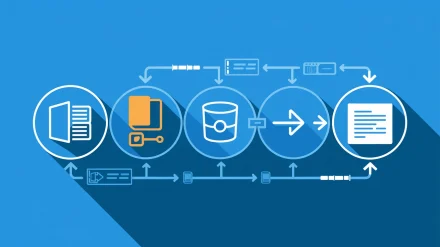
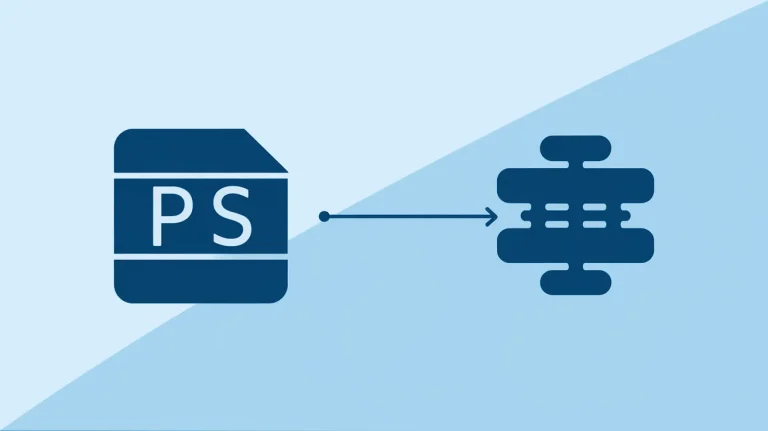
To solve that, the Intune team accepted a new package format: .intunewin. Underneath, it is an encrypted, compressed bundle of your source directory plus a manifest. The Microsoft documentation calls it the Win32 Content Prep format. You generate it locally with a tool called IntuneWinAppUtil and upload the result to Intune.
Here is the opinionated take. The intunewin format is not elegant. It is a workaround for the fact that EXE installers do not self-describe. But it works, it ships at scale, and it is the only sane path for non-MSI apps in a managed environment. Fighting it is wasted effort. Embrace the pipeline.
Gather the Source Files Before You Touch the Tool
Before packaging, you need three things in one directory. Skipping this step is the most common reason packaging fails or produces a 45 GB intunewin file.
- The installer itself. The actual EXE, MSI, or installer bootstrapper. Pin the version. Document where you got it. We keep a signed checksum in our internal catalog for every installer we package.
- Any required side files. License files, config XMLs, transform files, JSON profiles. Some vendor installers fail silently if a sibling file is missing.
- A deployment wrapper. A PowerShell script that calls the installer with the right arguments, captures exit codes, and writes a log. We will get to the wrapper in a minute.
One warning we hand every new engineer: the packaging tool grabs every file in the source directory you point it to. If you accidentally point it at your Downloads folder, you will package 45 GB of unrelated junk and wonder why your upload is still spinning at midnight. Keep the source folder clean.
Folder Layout We Standardized
After a few painful engagements, we standardized on this structure across every client:
C:\IntunePackages\
  AppName\
    Source\
      setup.exe
      config.xml
      Invoke-ApplicationInstall.ps1
    Output\
    Detection\
      Detect-AppName.ps1
The Source folder is what IntuneWinAppUtil eats. The Output folder is where the intunewin lands. The Detection folder holds the script that proves the install happened — Intune never sees it as part of the package, but we version it alongside everything else so the next engineer is not guessing.
Install the Win32 Content Prep Tool
The tool is a single executable. Microsoft publishes it on GitHub. Grab it from the official Microsoft-Win32-Content-Prep-Tool repository — pin a version, do not just yank latest forever.
Drop it on your packaging machine somewhere predictable. We use C:\Tools\IntuneWin32PackagingApp\. Add it to your PATH if you package frequently. There is no installer, no service, no telemetry. It is a 200 KB binary that wraps your source folder into an encrypted blob. That is the whole tool.
One Box, One Job
We dedicate a single Windows VM to packaging in every client tenant we manage. Not because the tool is heavy — it weighs nothing — but because reproducibility matters. The packaging VM has a fixed OS version, a fixed PowerShell version, a fixed set of dependencies. When something breaks six months later, we can rebuild the exact same intunewin file. Treat it like a golden image: documented, version-controlled, no manual installs.
Build a PowerShell Wrapper Instead of Calling the EXE Directly
You can point Intune’s install command straight at setup.exe /silent. For trivial installs that works. For anything you plan to support in production, do not.
Wrap it. Always. The wrapper gives you three things you cannot get from a raw EXE call:
- Logging. Capture stdout, stderr, and a transcript to a known path so the helpdesk can grep it.
- Pre/post hooks. Stop a service before install, restart it after. Drop a config file. Clean a stale registry key.
- Exit code translation. Vendor EXEs return arbitrary integers. Translate them into something Intune understands.
Here is the wrapper skeleton we ship by default. Adjust per app, but the bones stay the same:
# Invoke-ApplicationInstall.ps1
# Why: vendor EXE returns 3010 on success-with-reboot — Intune
# needs 0 or 3010 to mark Success. Anything else = Failed.

$LogDir = "$env:ProgramData\SSE\IntuneLogs"
New-Item -ItemType Directory -Path $LogDir -Force | Out-Null
Start-Transcript -Path "$LogDir\AppName-install.log" -Append

$installer = Join-Path $PSScriptRoot 'setup.exe'
$arguments = '/S /v"/qn REBOOT=ReallySuppress"'

$proc = Start-Process -FilePath $installer `
    -ArgumentList $arguments `
    -Wait -PassThru -NoNewWindow

Stop-Transcript
exit $proc.ExitCode
Five rules we enforce on every wrapper:
- Always log to
$env:ProgramData, never$env:TEMP. The latter is per-user and disappears. - Return the installer’s exit code unchanged unless you have a documented reason to map it.
- Never use
-WindowStyle Hiddenas a substitute for proper silent flags. Hidden windows still block on prompts. - Never call
powershell.exewithout specifying the architecture. More on that below. - Add a
# HACKcomment any time you work around a vendor bug. Future-you will need to know.
The 32-bit PowerShell Trap
This is the single most common bug we see in client Intune environments. Intune’s agent runs install commands through 32-bit PowerShell by default. If you call powershell.exe in your install command, you are getting the 32-bit interpreter on a 64-bit OS, and that means HKLM:\SOFTWARE reads land in the WOW6432Node hive. Detection rules then fail. Logs go to the wrong AppData. Native modules refuse to load.
The fix is simple and you must do it every time. In your install command, explicitly call the 64-bit PowerShell:
%SystemRoot%\sysnative\WindowsPowerShell\v1.0\powershell.exe -ExecutionPolicy Bypass -File .\Invoke-ApplicationInstall.ps1Sysnative is the magic alias that redirects 32-bit processes to the native 64-bit System32. You can also force 64-bit in the Intune Win32 app settings under "Install behavior" — set it explicitly. Belt and suspenders.
Package the App with IntuneWinAppUtil
With your Source folder clean and your wrapper in place, run the tool. The command takes three required arguments: source folder, setup file, output folder.
IntuneWinAppUtil.exe -c "C:\IntunePackages\AppName\Source" `
                     -s "setup.exe" `
                     -o "C:\IntunePackages\AppName\Output"
If you prefer the interactive prompts, just run IntuneWinAppUtil.exe with no arguments. It will walk you through the source folder, setup file, and output folder one at a time. For one-off packages that is fine. For anything you are running on a CI pipeline, pass arguments.
The tool encrypts and compresses your Source folder. Output is a single setup.intunewin file. That is the only artifact you upload to Intune. Save it. Version it. Sign your release notes with the SHA256 if you operate in a regulated environment.
One Engagement, One Lesson
We packaged a 700 MB CAD application for a manufacturing client last year. The vendor installer had a hidden behavior: on first launch, it pulled an additional 1.2 GB license bundle from a network share. The intunewin packaged fine. Deployment succeeded. Detection rule passed. Users opened the app and it crashed because the network share was blocked by their endpoint firewall policy.
The lesson: packaging is only the first half. Always test the first launch on a representative endpoint before declaring a deployment ready. The intunewin format only carries what you put in the source folder. Anything the installer fetches at runtime is your problem to identify ahead of time.
Upload to Intune and Configure the Deployment
In the Microsoft Intune admin center, navigate to Apps > By platform > Windows, click Add, and choose Windows app (Win32). The wizard walks you through six steps. Three of them matter more than the rest.
Step 1 — App Information
Name, publisher, version, description. Boring. Fill it in honestly. The name shows up in Company Portal — if your users see it, they should understand it. We standardize on Vendor — ProductName — Version so the support team can grep their telemetry later.
Step 2 — Program (Install and Uninstall Commands)
This is where most deployments go sideways. The install command is what Intune runs on the endpoint. The uninstall command should remove the app cleanly — yes, you actually need to write one, and yes, your auditors will ask.
Typical commands look like this:
Install: %SystemRoot%\sysnative\WindowsPowerShell\v1.0\powershell.exe -ExecutionPolicy Bypass -File .\Invoke-ApplicationInstall.ps1
Uninstall: %SystemRoot%\sysnative\WindowsPowerShell\v1.0\powershell.exe -ExecutionPolicy Bypass -File .\Invoke-ApplicationUninstall.ps1
Set Install behavior to System (almost always — most enterprise apps install per-machine, not per-user). Set Device restart behavior to "Determine behavior based on return codes" if your installer returns 3010 for soft reboot. Map your return codes explicitly — do not trust defaults.
Step 3 — Requirements
Set the minimum OS version. Set the architecture. If the app needs 8 GB of RAM, set the RAM requirement. Requirements are evaluated before install attempts, which means failed installs do not blow your error budget chasing devices that were never eligible.
Detection Rules That Do Not Lie
Detection rules are how Intune decides whether the app is installed. Get this wrong and Intune reports "Installed" on devices where the binary does not exist, or "Failed" on devices where it is running fine. You have three options.
- MSI product code. Only works if the EXE wraps an MSI and you know the ProductCode. Cleanest when available.
- File or registry check. Check for a specific file path with a minimum version, or a registry key under
HKLM:\SOFTWARE\Microsoft\Windows\CurrentVersion\Uninstall\. Reliable for most vendor installers. - Custom detection script. A PowerShell script that returns specific output. Use this when the install is non-standard — for example, a portable app that drops files in
C:\ProgramDatawith no registry footprint.
Our default is the registry-based check because it is the most stable across vendor updates. Sample logic:
# Detect-AppName.ps1
# Why: vendor uses different DisplayName casing across versions
$key = 'HKLM:\SOFTWARE\Microsoft\Windows\CurrentVersion\Uninstall\*'
$app = Get-ItemProperty $key -ErrorAction SilentlyContinue |
    Where-Object { $_.DisplayName -like 'VendorApp*' -and `
                   [version]$_.DisplayVersion -ge [version]'4.2.0' }

if ($app) {
    Write-Output 'Installed'
    exit 0
}
exit 1
Two non-negotiable rules. The script must write to stdout and return exit 0 to be a positive detection. If you only return exit 0 with no stdout, Intune treats it as a negative. And always test detection on a clean machine and a dirty machine before rolling out. We caught a detection bug last quarter that would have flagged 800 healthy machines as "Failed" because a registry value moved between versions.
Assign, Pilot, Then Ship It
Never assign a new Win32 app to All Devices on day one. Use a canary group. Five percent of your fleet, ideally a mix of OS versions and hardware profiles. Watch the install reporting for 48 hours. If success rate is above your SLO — we use 98% for standard line-of-business apps — promote to the next ring.
The blast radius of a bad Win32 deployment is high. Intune will retry failed installs on a backoff. If your install command has a side effect — drops a config file, modifies a service, edits the registry — every retry compounds. We have cleaned up after a client who pushed a misconfigured EXE to 4,000 endpoints with no canary. The cleanup took three days.
Pilot. Always pilot. Even when the vendor swears it is bulletproof.
Common Failure Modes and How to Diagnose Them
When an Intune Win32 deployment fails, you have four logs to read in order:
- IntuneManagementExtension.log on the endpoint at
C:\ProgramData\Microsoft\IntuneManagementExtension\Logs\. This tells you what Intune attempted and what exit code it got back. - Your wrapper transcript at the path you set in
Start-Transcript. This tells you what your script saw. - The vendor installer log, wherever the installer drops it. Read the vendor docs.
- Event Viewer > Applications and Services Logs > Microsoft > Windows > AppXDeployment-Server for AppX-related fallout, which sometimes shows up when an installer touches modern app components.
Three failure modes account for 80% of the tickets we triage:
Exit Code 1603 (Generic Fatal Error)
Usually means the installer hit a permissions issue or a missing prerequisite. Check that you set Install behavior to System. Check that your wrapper is not trying to write to a path the SYSTEM account cannot reach.
Install Reports Success But App Is Not There
Detection rule is wrong, or the installer silently bailed out and still returned 0. Read the vendor log. We have seen installers return 0 after refusing to install because a higher version was already present — that is a vendor bug, not your bug, but you still have to handle it. Add a post-install verification step to your wrapper.
Install Loops Forever
Detection rule never returns positive even after a successful install. Common cause: 32-bit detection script checking HKLM:\SOFTWARE on a 64-bit machine and landing in WOW6432Node. Force the detection script to 64-bit, or check both hives.
Tie It Back to Your Stack
Intune Win32 deployment is one piece of a broader endpoint management story. If you are managing a Windows fleet, you are also dealing with identity, configuration baselines, and registry-level controls. We have written about enforced authentication policies in Active Directory and scripting registry changes with PowerShell — both are common follow-on tasks once your app deployment pipeline is stable. For more on the underlying directory layer, Microsoft’s Active Directory Domain Services overview is the authoritative starting point.
One caveat to acknowledge. The intunewin format is not the right answer for everything. If your app ships as an MSI and you do not need pre or post hooks, deploy the MSI directly through Intune’s MSI line-of-business app type. Wrapping a clean MSI in intunewin adds complexity for no benefit. Use Win32 when you actually need the wrapper — EXE installers, custom logic, complex detection.
The Practical Takeaway
Packaging non-MSI apps for Intune is not glamorous work. It is, however, the difference between a helpdesk that fights fires and an endpoint team that ships predictably. Build the wrapper once. Standardize the folder layout. Pilot every release. Read the logs in order. The pipeline pays itself back the first time you push a new version to 2,000 endpoints in 20 minutes instead of 200 hours.
If your team is drowning in manual installs and you want a packaging pipeline that does not break every Patch Tuesday, talk to us. We have built this for clients in finance, manufacturing, and logistics — same playbook, tuned per environment.